
Overview
This section describes what tasks are and how they are used.
Further details on the graphical user interface can be found on page Graphical User Interface and Basic Functions.
/*<![CDATA[*/ div.rbtoc1770892089238 {padding: 0px;} div.rbtoc1770892089238 ul {list-style: disc;margin-left: 0px;} div.rbtoc1770892089238 li {margin-left: 0px;padding-left: 0px;} /*]]>*/ Overview General Information Status Tabular view Task List Columns
General Information
Tasks represent specific steps within a workflow. A workflow is a depiction of a sequence of operations, declared as work of a person, a group of persons, an organization of staff, or one or more simple or complex mechanisms.
A Workflow Task is a content item which has been assigned to a specific user, users with a specific role or members of a pool, indicating that a user needs to take action on the content item.
Under menu entry My tasks users may see
-
tasks directly assigned to them
-
tasks assignable to them
Status
Tasks may have the following technical status:
State: New
A "new" task is a task created by a workflow and has no assignee set.
New tasks do not appear in the "My tasks" of anybody.
New tasks appears in "My assignable tasks" of all users that are eligible candidates to be assigned to the tasks.
State: Assigned
Tasks are in status assigned when an assignee is set for them (a particular actor that commits work on the task).
Tasks in status assigned are displayed in My Tasks tab in task list.
Tasks in status assigned may also be shown in "My assignable tasks" allowing users to take tasks from other users (e.g. holiday case).
State: Finished
Tasks are in status finished after a workflow transition has been followed through.
Finished tasks are not shown in any task list.
State: Closed
Tasks are in status closed after a delete action was performed on the task. After such an action the task and the workflow instance are both closed.
Closed tasks are not shown in any task list.
State: Initial
Depending on how the system is configured, the workflow may choose to automatically assign a task to the first member of the pool or may choose to let the task unassigned and by this the task will appear in the "My assignable tasks" of all users of the pool.
Tabular view
When opening the My tasks menu entry in Document Manager, user sees the Workflow Task. These are organized in a tabular view and user can see:
-
tasks directly assigned to them
-
tasks assignable to them
This is the default view when the user enters the workspace area of Document Manager tasks.
Toolbar
|
Button Icon |
Button Name |
Description |
|---|---|---|
|
|
Refresh |
Allows users to refresh the list of tasks |
|
|
View |
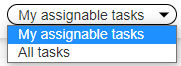
Allows users to switch between assignable tasks and All tasks. Only users with role Dataadministrator can see all tasks. |
|
|
Show assigned tasks |
Allows users to also view tasks from the pools the user belongs to that are already assigned to a user |
|
|
Manage selected |
Allows users to manage selected tasks (move them to the next workflow step). This is helpful because user cam select several tasks and decide for each one what the next step is. |
|
|
Assign to me |
Allows users to assign themselves a task |
|
|
Reassign tasks |
Allows users to assign themselves a task that is already assigned to another user (e.g. in case respective user is on holiday) |
|
|
Unassign tasks |
Allows users to remove a task assignment |
|
|
Delete tasks |
Allows users to delete the selected tasks. |
|
|
Recalculate tasks pool |
Allows users to recalculate pool assignments for the selected tasks. |



Task List Columns
The following columns are available in the list of tasks:
|
Column Name |
Description |
|---|---|
|
ID |
Each task is assigned upon creation an ID that remains unchanged throughout the workflow. |
|
Workflow Id |
ID of the workflow instance |
|
Assignee |
The user who is responsible for the task |
|
Task Description |
Description of the task |
|
Object ID |
ID of the object moved through the workflow. In case of SAP Items, SAP ID of the item |
|
Object Name |
Name of the object moved through the workflow. Name of the Item |
|
Work package |
In case the objects are packetized in work packages, the ID of the work package. |
|
Creator |
The user whose action triggered the creation of the task. |
|
Creation date |
The date when the task was created. |
|
End date |
Displays the last possible date until when user can act on the assigned task. Some tasks have an end date. |
|
Open |
Indicates if task is open. Closed tasks are not displayed in list anymore. |
|
Suspended |
Indicates if task was suspended (because for example the workflow changed or for other reasons) |
|
Workflow |
Name of the workflow |
|
Error Message |
In case of errors, displays the error |
|
Task Type |
e.g. Search engine error resolution, Search engine error resolution etc. |
|
Version |
Displays the version of the workflow. The version is incremented on change. |
|
Pool name |
The name of the pool responsible for the task. |
|
Engine |
Displays the version of the Workflow Engine - for example "1.0" or "2.0" |