
Overview
eptos ECLASS-CDP Connector is an add-on tool for eptos Dictionary Manager that simplifies the management of ECLASS structure elements within an organization’s workflow.
With eptos ECLASS-CDP Connector, users can seamlessly integrate ECLASS structure elements (classes, properties, etc.) into their corporate applications and receive automatic release updates without any human interaction. ECLASS Content Development Platform (CDP) is a web-based tool that allows manufacturers and suppliers to create and maintain product descriptions in accordance with the ECLASS standard.
The Connector supports:
-
download of a single property (without formal mapping) as a copy aid.
-
download of one class and all included elements (e.g. the class "cutter")
-
download of full Subsegments of ECLASS (e.g. 27 - electronic components)
-
download of a full ECLASS release (same as if loaded by the "big ECLASS" file)
-
automatic update processes. That means, if a new release of ECLASS appears, the users are able to download it automatically again, without human intervention.
Thereby the users can really change the basic paradigm of how ECLASS is integrated.
Prerequisite
The prerequisites for using this eptos product are the purchase of a license for Accelerated ECLASS and the eptos ECLASS-CDP Connector.
Graphical Interface
The graphical interface allowing users to navigate and download from the Remote Dictionary is available in any hierarchical display. Here users need to select the remote Release in the drop-down.
As soon as remote Release has been selected, system displays it in hierarchical form, including check-box for marking which of the nodes to download.
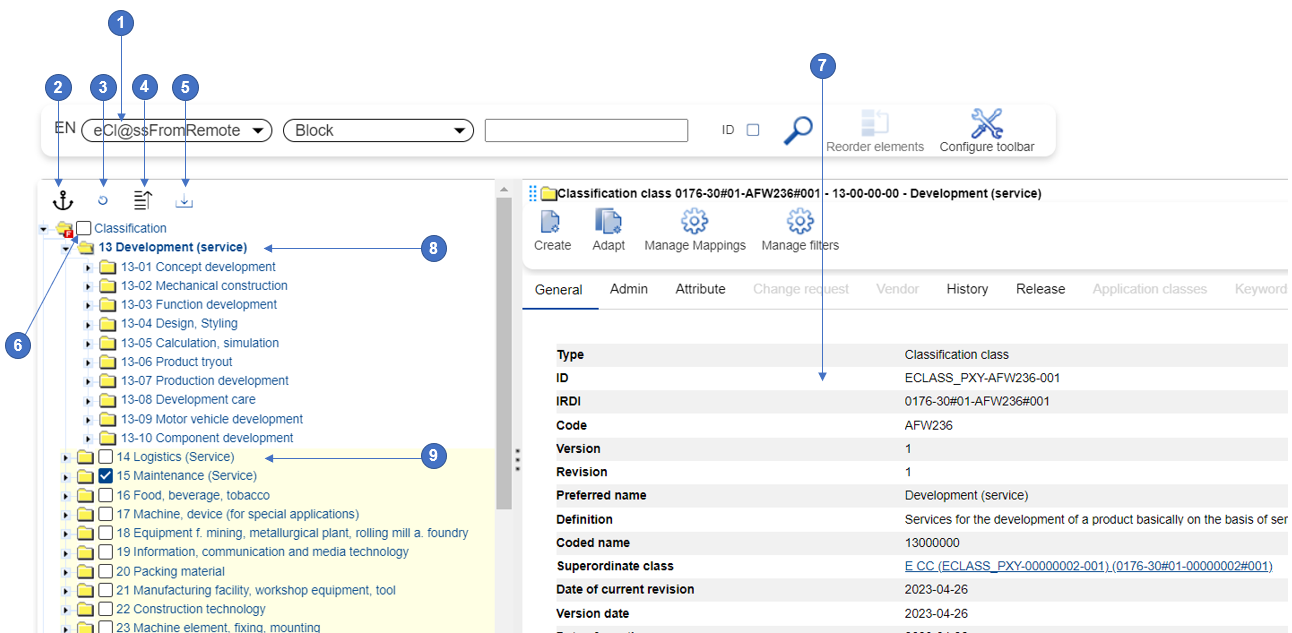
1 → Drop-down for Release selection
2 → Anchor to selected node icon: after selecting a specific node in hierarchy and pressing this icon, system removes all the other nodes from display, for a better focus.
3 → Refresh hierarchy icon
4 → Collapse hierarchy icon: if expanded, by pressing this icon system collapses the entire hierarchy to the first level nodes.
5 → Download icon
6 → Check-box for selecting the elements to be downloaded
7 → Details of downloaded structure element selected in hierarchy
8 → Sample display of downloaded element
9 → Sample display of not downloaded element.
Navigation in the Remote Dictionary
The prerequisites for using this eptos product are the purchase of a license for the eptos ECLASS-CDP Connector and the configuration of the dictionary type Remote dictionary by an administrator.
Users having Dictionary Manager Editor role have the right to browse through a remote Dictionary.
This means that they are able to navigate the hierarchical display of the remote Dictionary like a local tree, meaning it is possible to expand all nodes down to the deepest levels.
Nodes which have not yet been downloaded are marked in a different color than the imported ones. On selection of any element which has not yet been downloaded in hierarchy, system does not display its details in the right-hand panel.
Downloading from the Remote Dictionary
Overview
Users having Dictionary Manager Editor (or ECLASS Accelerated Manager) role assigned may navigate in the tree offered by ECLASS accelerated webservices and choose the classes they want to use in their local system. Thereby, instead of downloading full ECLASS Dictionary, the user has the possibility to take over (i.e. download) only the elements he needs in his local Dictionary.
Before the navigation within a remote Dictionary, the data is delivered by the ECLASS Accelerated REST services.
The system displays the retrieved or locally stored dictionary elements. Downloaded elements are shown differently.
By checking the box in front of the elements which are needed and pressing the "Download" icon, respective objects are downloaded into the local Dictionary.
Characteristics
-
If the Root (i.e. a RELEASE) is selected, the whole ECLASS Release is downloaded
-
If anything is selected, all parent elements up to the 1st level Classification Class are selected (which are not yet downloaded)
-
If an Application Class is selected, all objects within it are selected as well, meaning the ones which have not yet been downloaded
-
If a downloaded element is selected in the tree, details of respected element are displayed to the user in the right-hand panel.