
Overview
This section describes how the XLSX sheet for importing Documents and Document Assignments needs to be prepared.
User may import Documents and Document Assignments at the same time by organizing and uploading 1 XLSX file having 2 sheets:
-
1. sheet for import Documents
-
2. sheet for import Document Assignments
/*<![CDATA[*/ div.rbtoc1770892090055 {padding: 0px;} div.rbtoc1770892090055 ul {list-style: disc;margin-left: 0px;} div.rbtoc1770892090055 li {margin-left: 0px;padding-left: 0px;} /*]]>*/ Overview Overall Conventions Software Worksheet Table Columns Column name Column Code Requirement of Contained Data Data types Column Description Translatability IN/OUT Identifiers (IDs) Prepare XLSX Sheet for Import Documents Repository Type Documents Types of Documents Name and Title of Documents Import Format of Document Language of Documents Linguality of Document URL of Documents SHEET Documents Prepare XLSX Sheet for Import of Document Assignments SHEET Assignments Import Documents GUI
Overall Conventions
Software
Import filters file is composed of one XLSX sheet. Therefore, to build the file a program needs to be installed that can handle the XLSX format, such as Microsoft Excel. Documents which implement this file format specification need to be saved as .xlsx files.
Worksheet
An Excel file can be structured in multiple work sheets. Each work sheet has a name that must be adhered to.
Each sheet has two header lines and a data payload.
In row 1 the human readable column names are printed – the row will be ignored by import
Row 2 contains the column codes that are used by the import program to identify the content.
Then follow the data rows.
Table Columns
Column name
Each table column has a name which gives a human comprehensive short reference of the column's content.
Note: the column name is for convenience only and not used to interpret the file.
Column Code
In order to reference the column unambiguously each column gets a unique code within the worksheet.
The import program is relying on Column Codes. If Column orders are changed, the codes must be preserved.
Requirement of Contained Data
Each column of contained data can be either
-
Mandatory – values MUST be present
-
Optional – values MAY be present
-
Conditional – values MUST be present IF a condition applies
Data types
Each column has a defined data type, i.e. a restricted set of available values. For example the data type integer only allows whole numbers while the data type string allows any sequences of characters. Additionally, the data type string can be syntactically further constrained by a grammar.
|
Data type |
Description |
Example |
|---|---|---|
|
Integer |
whole number (positive and negative) |
-10, 20 |
|
Real |
Rational numbers (positive and negative)
|
10, 10.5, -12, 44
|
|
String |
Sequence of characters (excluding inverted comma)
|
AbC |
Column Description
Description of the content for each column.
Translatability
The content of each column can be either translatable or not. In case a column's content data are translatable, the column code in the header is suffixed by a locale code comprising of a language code, an underscore and a country code. Example of locale codes: "de_DE", "en_US".
The content of each column can be translatable or not. In case a column's content data are translatable, the column code in the header is suffixed by a locale code comprising of a language code, an underscore and a country code. Example of locale codes: "de_DE", "en_US".
IN/OUT
For each column it can be defined whether the contained data is relevant for import or only gives additional information to a human reader of the file.
Identifiers (IDs)
References within the exchange file are made by an ID. There are two kinds of IDs to be separated:
-
Transient ID
Any sequence of characters can be treated as a transient ID when it cannot be confused with a code or an IRDI. It is recommended to use 6 digits long zero padded running numbers, e.g. 000001. The running number must be unique within the file and will be replaced by a code during import.
-
Persistent ID
A persistent ID can be used for references during load of new entries and for updates of existing entries. For updates of data that are already stored in eptos using a persistent ID is mandatory. The format of the persistent ID in eptos is the international registration data identifier (IRDI). For classification classes also the coded name may be used.
When an import file contains more than one ID for the same entity, the following precedence is taken:
-
Persistent ID (IRDI)
-
Coded Name
-
Transient ID
Prepare XLSX Sheet for Import Documents
This section describes how the .xlsx sheet for importing Documents is structured and how it needs to be filled. User may define in sheet1 Documents to be created/imported in eptos.
Each column has a specific column Code, which system uses to import the correct information. It is mandatory that column code is indicated when importing Documents (name of column is optional).
Repository Type Documents
User has the possibility to import repository type documents local or cached.
Repository Type Local means system will create a document attachment and upload it directly in portal using the indicated link from the .xlsx file. User may retrieve document by clicking on it.
Repository Type CACHED means system will create a document having the indicated link in .xlsx file attached to it. User may use this link (by clicking it) to open the document in another tab or browser window.
In Column Code A08 user defines the repository type of document to be imported. Field is mandatory.
Types of Documents
In Column Code TY user defines the type of Document to be imported. Field is mandatory.
Import of document types and additional document types are defined in spec sheet as follows:
→ Document type Datasheet: Acronym D needs to be specified
→ Document type Image: Acronym I needs to be specified
→ Document type Safety datasheet: Acronym SD needs to be specified
→ Document type Certificate and its additional types:
-
Additional document type certificate: Acronym CE needs to be specified
-
Additional document type ATEX: Acronym ATEX needs to be specified
-
Additional document type REACH: Acronym REACH needs to be specified
-
Additional document type RohS: Acronym ROHS needs to be specified
→ Document type Add. Doc. and its additional types:
-
Additional document type Manual: Acronym M needs to be specified
-
Additional document type Installation Guide: Acronym IG needs to be specified
-
Additional documents type Drawing: Acronym DR needs to be specified
-
Additional document type Add. CE Docu: Acronym ACE needs to be specified
-
Additional document type Add. ATEX Docu: Acronym AATEX needs to be specified
-
Additional document type Add. Misc.: Acronym AM needs to be specified
Name and Title of Documents
In Column Code A01/A02 user defines the name/title of Document to be imported. Fields are mandatory.
Name of document = Short Name of the document to be created in eptos
Title of document = Name of the document
Import Format of Document
In column Code A03 user defines the format of Document to be imported. Multiple formats can be used to import Documents with their corresponding extension.
For example:
-
application/pdf
-
application/doc
-
application/img
-
application/png
Language of Documents
In Column Code A06 user defines the language of Document.
Below are some examples of acronyms which must be used to define the language for the Document:
→ For language German = de_DE
→ For language English = en_US
Linguality of Document
In Column Code A11 user defines the language type(s) of Document.
For 1 language in Document, linguality monolingual can be used. For multiple languages in Document, linguality multilingual can be used.
Note: if linguality multilingual is defined, user must enumerate the languages in column Languages (A13).
For no language, linguality neutral can be used.
Note: if no language version is defined, column Language (A06) needs to be empty.
URL of Documents
In Column Code A09 user specifies the location (link) of Documents. Full link of location where Document is located needs to be specified. Field is mandatory.
For information on how to organize Document import, see page Import.
SHEET Documents
|
Column name |
Obligation |
Column Code |
IN/OUT |
Description |
Example |
|---|---|---|---|---|---|
|
IRDI |
M |
ID |
IN/OUT |
IRDI of the document (export).
|
0175-1#10-STD1#001 |
|
Type |
M |
TY |
IN/OUT |
Datasheet = D
|
I |
|
Name |
M |
A01 |
IN/OUT |
Short Name of the document (ISO 639) |
Test-Name multi |
|
Title |
M |
A02 |
IN/OUT |
Name of the document (Language codes) |
Test-Title |
|
Format |
O |
A03 |
IN/OUT |
Document format |
application/pdf |
|
Date of creation |
O |
A04 |
OUT |
Date of creation of the document |
1/1/2010 |
|
Date of modification |
O |
A05 |
OUT |
Date of modification of the document |
1/1/2010 |
|
Language |
O |
A06 |
IN/OUT |
Language the document is written in |
de_DE |
|
Predecessor's IRDI |
O |
A07 |
IN/OUT |
IRDI of the predecessor document |
0175-1#10-STD1OLD#001 |
|
Repository type |
M |
A08 |
IN |
Location type of the document.
|
CACHED |
|
URL |
M |
A09 |
IN/OUT |
For Cached: the link from where the documents are synchronized. For Remote: the link associated to the document |
www….. |
|
TimeToLive |
O |
A10 |
IN/OUT |
Timestamp (measured in seconds) attached to the data. Once the prescribed timespan has elapsed, data is discarded. |
3600 |
|
Linguality |
O |
A11 |
IN/OUT |
Following possibilities available: monolingual, multilingual, neutral |
multilingual |
|
Business document version |
O |
A12 |
IN/OUT |
String indicating Document version. Column is mandatory only for document type Datasheet |
01 |
|
Languages |
O |
A13 |
|
Column applies only to multilingual documents |
de_DE;en_US |
Table 1 - Columns of Sheet Documents
Note:
-
In imports, the columns should be specified by column codes (actual column name being optional)
-
At the time of the import, system sets the data "Now" in an attribute of the document (CacheSyncronizationTime); it will be modified on every new synchronization.
-
On the interface displaying the document, users will be able to call "manual synchronization" which will bring the document in cache.
-
Column "Business document version" is currently mandatory only for document type Datasheet.#
-
local paths will be indicated as follows:
e.g.: *_file:////c:/temp/1/EX0640_EN.pdf_*
-
Document import needs to deal with proxy authentication. Sample of link which needs to be accessed:
-
Import supports LOCAL document load:
-
if the content of document is not accessible this is reported to user:
e.g. Content for local document 'doc2' fetched from 'http://w' is not accessible or empty
-
to import local document the value specified in Repository type should be "Local"
Prepare XLSX Sheet for Import of Document Assignments
This section describes how the XLSX sheet for importing Document Assignments needs to be prepared.
As a Document Manager Editor, the user is able to attach Documents to Items so that he can enrich the Item with additional data.
User may define in sheet2 the Document Assignments.
To import Document Assignments in eptos user must define in XLSX spec sheet the name of Document to be assigned in Item (column Document) and the Item ID where Document needs to be assigned to (column Entity).
SHEET Assignments
Present sheet provides assign document to entity information.
|
Column name |
Obligation |
Column Code |
IN/OUT |
Description |
Example |
|---|---|---|---|---|---|
|
Document |
M |
|
IN |
Column identifying the document: it can be document SCV, IRDI or a reference (name or title) from "Documents" sheet |
|
|
Entity |
M |
|
IN |
Column identifying the entity where the document is associated (can be entity IRDI or item leading ID) |
|
|
Producer_name |
O |
|
IN/OUT |
Column containing name of producer |
Hirschmann |
|
Producer_Item_ID |
O |
|
IN/OUT |
Column containing producer item ID |
930308100 |
Table 2 - Columns of Sheet Assignments
Note:
-
Import is implemented to work with only sheet Documents as well; however, if Assignments sheet is missing a warning is reported (e.g. o WARN: Sheet 'Assignments' is missing.)
-
Regarding columns "Producer_name" and "Producer_Item_ID":
-
If both columns are provided, the document is not anymore attached to the item but to the corresponding Item ID.
-
If only column "Producer_name" is provided, system will use only this one and give error if Item ID is not unique.
-
If neither of these columns is provided, import will assign document to item as before.
Import Documents GUI
Import Documents GUI will offer Users the possibility to choose desired Supplier, enter respective e-mail address and select the corresponding Document and Assignments sheets according to browsed import file.
Once the document sheets are selected, dropdown inputs under "Document assignment column config" are populated for each detected column in import file. The dropdowns contain the descriptors which need to be chosen for each of the columns in order to identify the data before import:
-
Document IRDI
-
Document SCV
-
Document name (unique) – if multiple documents with the same name are detected, error will be reported
-
Document name (not unique) – if multiple documents with the same name are detected, all of them will be associated to indicated item
-
Entity IRDI
-
Item leading ID
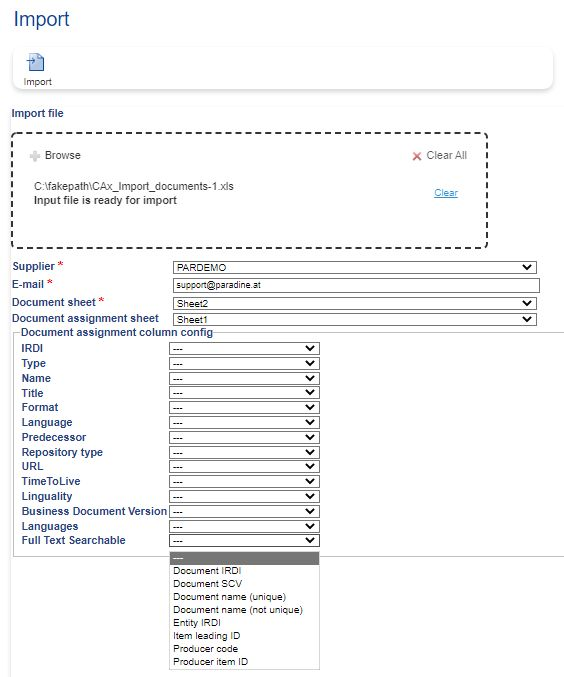
Thus, import GUI allows users to select:
-
the appropriate sheet for each import
-
the appropriate column descriptor for each column (in the case of document assignments)