Overview
eptos Classification Manager offers users a harmonized graphical user interface for the management of Classification similar to Structure Elements of a Dictionary.
When opening the manager, the users see the menu (representing workspace areas for the managed structure elements) on the left side. The visibility of the menus is controlled by user rights. Workspace area can be accessed by clicking on a specific menu.
The Classification workspace area is displayed on the right side of the screen and starts with a tabular view of the Classification classes.
eptos differentiates throughout all managers between a graphical user interface language and a content language. The language of the graphical user interface and of the maintained content can be set individually. Users can therefore work with graphical user interface language set in English / German and content language set to another language (e.g. French).
For structure elements without translation in a selected content language, the system uses the default system language as fallback and signals the missing translation with an exclamation mark in front of the text.
The graphical user interface of the eptos Classification Manager consists of the following main areas:
-
Tabular view
-
Tree view
-
Compare view
Classification classes have a set of basic functions similar to the Structure Elements of the Dictionary Manager. Specifics related to these basic functionalities are described in the specific chapters of Classification manager.
Basic functionalities are:
-
Search: allows users to search for specific Structure Elements
-
Create: allows creation of new Structure Elements
-
Change Text: allows editing of existing Structure Elements
-
Delete: allows deletion (deprecation) of existing Structure Elements
-
Assign: allows connection of Structure Elements
-
Withdraw: allows withdrawal of structure elements or of their connection to other Structure Elements
-
Reactivate: allows re-activation of deprecated Structure Elements or of their connection to other Structure Elements
-
Compare: allows the comparison of two or more Structure Elements of the same type
-
Export: allows the export of Classification Manager Structure Elements
-
Import: allows the import of Classification Manager Structure Elements
The following section describes the main areas of the graphical user interface and some basic functionalities. Further information on basic and specific functionalities are described in the specific chapters of Classification manager documentation.
/*<![CDATA[*/ div.rbtoc1770892094570 {padding: 0px;} div.rbtoc1770892094570 ul {list-style: disc;margin-left: 0px;} div.rbtoc1770892094570 li {margin-left: 0px;padding-left: 0px;} /*]]>*/ Overview Tabular View Quick Search Advanced Search Sorting Filter Filter Sets Create Filter Set Edit Filter Set Delete Filter Set Define as Group Filter Set Set Filter Set as default Select Filter Set Tree View Tree Icons Search in Tree View View Details of Dictionary Elements in Tree View Reorder Elements Compare View
Tabular View
Classification classes are organized in a tabular view. This is the default view when the user enters the workspace area of a specific Structure Element.
The tabular view offers users the possibility to browse and search the available Classification classes
The tabular view is subdivided into two tabs: one tab for released Classification classes and one for Change Requests.
Moving from one page to the next page and back is possible via the Next/Previous buttons available in the left top of the table. In front of the Next/Previous buttons, the system displays the number of results found for a specific query.
The tabular view is configurable according to users' needs from the configuration panel located in each tabular view above the list, on the far right hand side (gear wheal symbol). From this column management dialog columns can be set as hidden / visible, the order of columns can be changed and user can add / remove link to the data displayed in relevant column.
System allows user to search for columns in the dialog list so that these actions of column management can be performed quicker, since user can search for and find the needed column via a search function instead of manual scrolling.
User can also configure the number of results displayed per page (available option 15, 25, 50, 100 results per page in the right top of the table).
In these tabular view columns the Classification Classes standard and extended attributes are represented. The columns have sorting and filtering options and their width can be adjusted as needed.
Moreover, system offers user the harmonized search feature which allows to store / load Filter Sets. They are also provided with following match inputs where needed:
-
Match fragments → Matches all fragments in the input (split by space) separately
-
Match all from start → Matches the whole input from start
-
Match all→ Matches the whole input in any position
-
Equal → Exact match
In the Tabular view user has also has an export to excel function guarded by specific user rights for exporting all visible columns.
The tabular view offers users the following options:
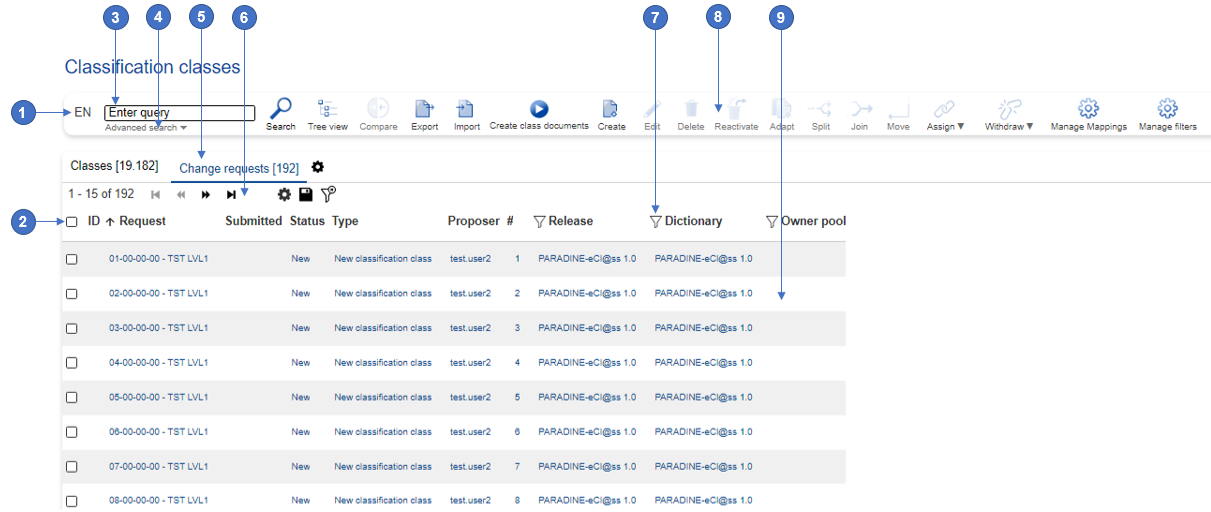
|
No. |
Name |
Description |
|---|---|---|
|
1 |
Content language selector |
Allows users to switch between available content languages. Note: the graphical user interface language is changeable independent of the content language. |
|
2 |
Selection box |
Allows users to select the Classification class which will be worked on. |
|
3 |
Search field |
Allows users to enter their search string in order to easily retrieve needed data. |
|
4 |
Advanced search |
Allows users to define in which attributes and with which options the search will be performed. |
|
5 |
Tabs |
Allows user to switch between already released Classification classes and Change Requests. |
|
6 |
Navigation buttons |
Allows users to navigate to next pages or back to previous pages. |
|
7 |
Column headers |
Allows uses to sort the content of columns respectively to filter the content for a better retrieval of results. |
|
8 |
Toolbar |
Allows users to work on the data displayed in the tabular view. |
|
9 |
Configurable table view |
Allows user to view available content in an organized way, which may be configured to their own needs. |
Quick Search
Classification Manager, similar to the Structure Elements of the Dictionary Manager, offers a "Search" functionality with harmonized search criteria and options under all tabular views of Structure Elements as well as tabular views under relevant toolbar options (e.g. assign). The search can be triggered by selecting Search option.
Tabular views have a sticky header that allows user to see the column headers even if displayed entries on page are set to more than 15 and user needs to scroll down.
Advanced Search
The advanced search can be opened by pressing the Advanced Search arrow situated below the search field.
The following harmonized choice is available for "Search In" (Radio Buttons: only 1 can be selected):
|
Search in |
Enter query |
Explanation |
|---|---|---|
|
ID |
Ex.: PAR-AKB116-001 |
Item data contained in the identification (IRDI, SCV, Code) |
|
Preferred Name |
Ex.: Gripper Jaw |
Item data contained in column Preferred name |
|
All fields |
Ex.: Notebook |
Full Text Search. Search in all Fields and Extended Attributes (which cannot store only Numbers or a flag) |
Note: the field where the search query is typed cannot contain wildcards (ex.: *, %.).
The following harmonized choice is available as "Search options" (Radio Buttons: only 1 can be selected):
|
Search options |
Enter query |
Results |
Explanation |
|---|---|---|---|
|
Match fragments (equals old "Fragment Search") |
Ex.: "Rubber gasket" |
Ex.: "Gasket with rubber collar", "Rubber collar for gasket", "Gasket", "Rubber gasket", "Cylinder with rubber gasket", "Cylinder with rubber gasket (not specified)", "Rubber gasket (not specified)". |
Matches all fragments from the input (split by space) separately. System finds all entries containing these strings even if they are not in this entered order. |
|
Match all from start (equals old "Match pattern from start" + "Fragment Search disabled") |
Ex.: "Rubber gasket" |
Ex.: "Rubber gasket", "Rubber gasket (not specified)". |
Matches the whole input from start. System returns only and all results which start with the search query. |
|
Match all |
Ex.: "Rubber gasket" |
Ex.: "Rubber gasket", "Cylinder with rubber gasket", "Cylinder with rubber gasket (not specified)", "Rubber gasket (not specified)". |
Matches the whole input in any position. System returns all results which contain search query as a block, no separated. |
Sorting
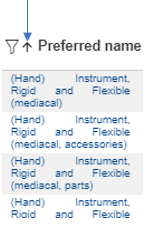
The columns in the Tabular view offer sorting possibilities. Sorting the results in ascending/descending order is possible by clicking on the column header. An arrow situated in front of the header, pointing upwards or downwards indicates that respective column is already ascendingly or descendingly sorted.
Filter
The columns in the tabular view offer also filtering possibilities. Filtering the results is possible via the filters placed in the left side of the column header.
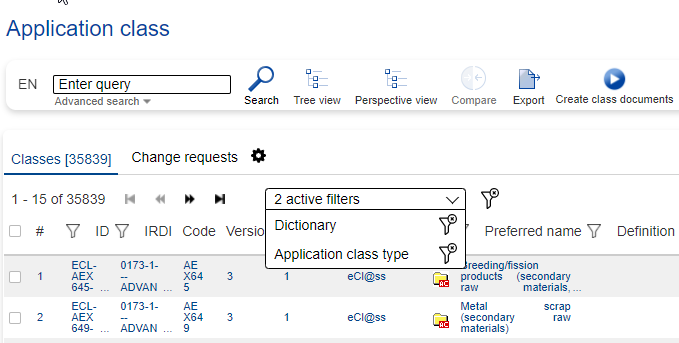
When entering the tabular view, system shows how many and which filters exactly are already applied in the list via the active filter selector situated right above the tabular view. From here user can also remove one filter at a time if several filters are already set. Or, if he needs to remove them all in order to organize a new search, system allows this via option "Clear all filters" located on the right of filter selector.
The following filters are available:
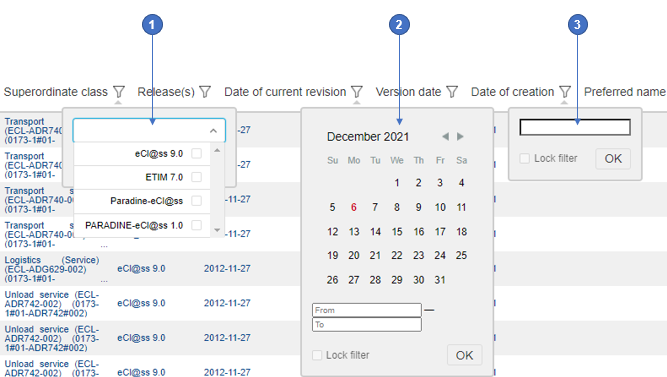
|
No. |
Filter Type |
Description |
|---|---|---|
|
1 |
Predefined list of values |
Columns representing attributes with predefined list of possible values allow users to further refine the search results by selecting one or more of the predefined values for respective attribute. |
|
2 |
Date |
Columns representing dates allow user to filter the search result base on a specific date (e.g. creation date, version date etc.). |
|
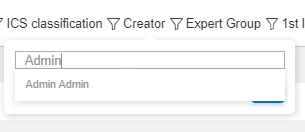
3 |
Free text input |
Columns representing attributes with free text input allow users to further refine the search results by additional search in respective attribute. An autocompleter is available for the "Creator" column to simplify the search for the creator's name. |
Filter Sets
Several set column Filters can be stored together as Filter Sets.
They help Users in lists to store and apply the column Filters of the respective tabular view. By using Filter Sets, Users do no longer need to manually select often-used column Filters again and again.
The drop-down containing the available Filter Sets in a list is available on the right of the Navigation buttons. If no specific Filter Set is defined as default for respective list "(No set)" is displayed.
Create Filter Set
In order to Create a new Filter Set the User needs to select option "Configure filters sets" on the right of the Set drop-down.
System opens the Manage filters sets interface. Here the User needs to select option "Create a new filters set", then fill in the Name of the Set to be created, then select option Create. The new Set will be displayed at the bottom of the list. At this point, only the empty Set is available by Name only. The User now needs to add the actual Filters he needs to this Set.
In order to do so, he needs to follow the three steps below:
-
select the newly created Set by pressing the radio button on its right, in the Filter Set drop-down
-
set desired Filters to desired columns
-
select Save filters sets option on the right of the "Configure filters sets" option.
Note: system does not allow creation of two Filter Sets with the same name for the current User.
Edit Filter Set
Filter Sets can be edited both what their Name and what their contained Filters are concerned.
In order to edit the Name of a Set, the User first needs to select option "Configure filters sets" on the right of the Sets drop-down. System opens the Manage filters sets interface. Here the User needs to select Edit filters sets icon on the right of the Set to be edited. System opens the interface in which the Name can be edited, including Update option, to be pressed after change is done.
In order to edit the Filters contained in a Set, the User has two possibilities:
-
remove Filters currently available in a Set → this can be done by expanding the respective Set in the Set drop-down and clicking the Clear filter icon available on the right of the Filter to be removed
-
add Filters to selected Set → this is done by selecting the respective Set in the Set drop-down, setting the desired additional Filters in respective columns and then selecting Save filters sets option on the right of the "Configure filters sets" option.
Delete Filter Set
In order to delete a Filter Set, the User first needs to select option "Configure filters sets" on the right of the Set drop-down. System opens the Manage filters sets interface. Here the User needs to select the Delete filters sets icon on the right of the Set to be deleted. System then asks for confirmation and, as soon as the User selects Delete option, list is updated by having respective Set removed.
Define as Group Filter Set
This functionality is available only for Base Module Administrator User and it helps defining specific Sets as Group Filter Sets. On condition that Base Module Administrator User connects these Sets to the Group, all Users belonging to respective Group will have access to these Sets.
In order to define a Set as Group Set, the User first needs to select "Configure filters sets" option on the right of the Set drop-down. System opens the Manage filters sets interface. Here the User needs to select the Define as group filters sets icon on the right of the desired Set. The icon turns from grey to black, in order to signal the change.
Group Filter Sets cannot be renamed or deleted by regular Users.
Set Filter Set as default
System offers 2 distinct possibilities to set a filter set as default:
-
at user level (defined by each user and being applied only for that user)
This functionality helps Users define specific Sets as default.
In order to define a Set as default, the User first needs to select "Configure filters sets" option on the right of the Set drop-down. System opens the Manage filters sets interface. Here the User needs to select the Set default filters set icon on the left of the desired Set. The icon turns from grey to black, in order to signal the change.
The effect of this setting is that every time the User re-enters respective page, the default Filter Set will be pre-selected.
-
at menu level (defined by Administrator for each menu entry and being applied for all users in that menu entry)
User with Base Module Administrator rights has also the possibility to select an existing filter set as default for a certain tabular view or remove it as default.
This is configured from Base Module / Configuration / Configurable menu where administrator needs to select the needed menu entry, then select the desired filter set in field "Default filter set“ and select Save option.
The result is that all users entering that specific tabular view, will have the pre-selected default filter set already applied to list.
Select Filter Set
System allows Users in all tabular displays to select a Filter Set from the available list. The filters belonging to selected Set will be immediately applied and the name of the currently applied Set is displayed in the box.
The list of available Filter Sets is comprised of:
-
Own Filter Sets
-
Filter Sets inherited by Role/Group of the current User
Only Users having Base Module Administrator role assigned will see all Filter Sets from all Users.
Tree View
In addition to the tabular view, the system offers the possibility to view the Structure Elements in a hierarchical structure.
The hierarchical structure of Structure Elements can be accessed via Tree View option. The displayed Tree Views depend on the menu from which the tree view is accessed. The following four tree views (in different combinations) are basically available:
-
Classification tree: displays
Classification Classes
in a hierarchical view. The Classification Classes are arranged in the Classification tree based on their coded name. In case Application Classes are assigned to the Classification Classes, the tree can be expanded to find desired Classification Class and the connected Application Class. If the user has defined in the user profile that properties, values and aspects should also be displayed in the tree, the Application class can also be expanded to see the connected Structure Elements.
-
Application Class tree: displays Application Classes in a hierarchical view. In case the Application Classes form a flat hierarchy (i.e. the Application Classes do not have additional specializations), they are grouped in letter folders based on the first letters of their preferred names. The tree can be expanded to find desired Application Classes. If the user has defined in the user profile that properties, values and aspects should also be displayed in the tree, the Application class can also be expanded to see the connected Structure Elements.
-
Block tree: displays Blocks in a hierarchical view. In case the Blocks form a flat hierarchy (i.e. the Blocks do not have additional specializations), they are grouped in letter folders based on the first letters of their preferred names. The tree can be expanded to find desired Block. If the user has defined in the user profile that properties, values and aspects should also be displayed in the tree, the Block can also be expanded to see the connected Structure Elements.
-
Aspect tree: displays Aspects in a hierarchical view. In case the Aspects form a flat hierarchy (i.e. the Aspects do not have additional specializations), they are grouped in letter folders based on the first letters of their preferred names. The tree can be expanded to find desired Aspects. If the user has defined in the user profile that properties, values and aspects should also be displayed in the tree, the Aspect can also be expanded to see the connected Structure Elements.
The hierarchical view offers users the following options:
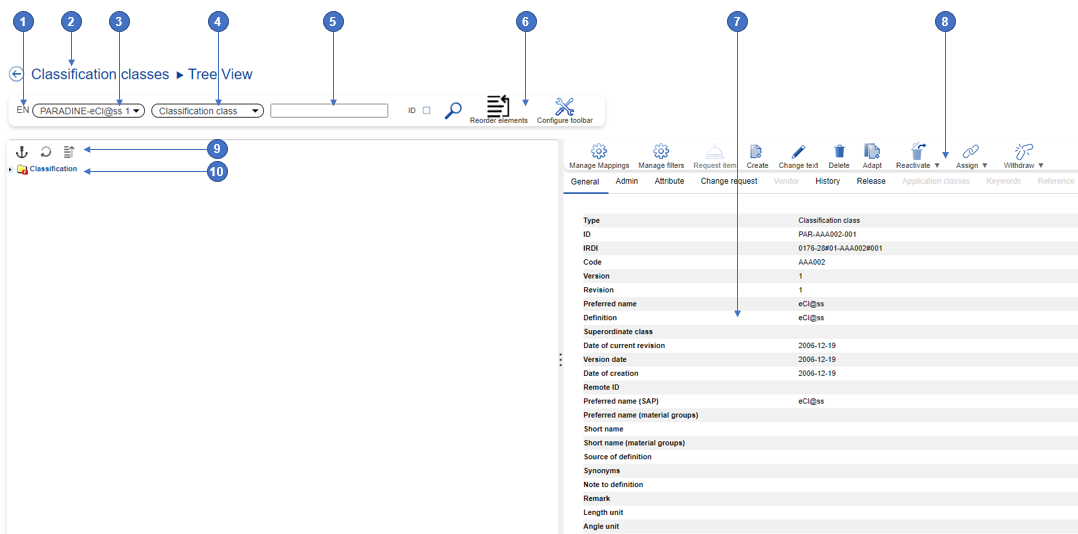
|
No. |
Name |
Description |
|---|---|---|
|
1 |
Content language selector |
Allows users to switch between available content languages. Note: the graphical user interface language is changeable independent of the content language. |
|
2 |
Breadcrumb |
Breadcrumb is a mandatory block that is present on every page and displays which page the user is currently on. It also allows you to quickly go to previous pages from the same chain of links. |
|
3 |
Release selector |
Allows users to switch between different releases and thus change the content displayed in tree. |
|
4 |
Business object selector |
Allows users to refine the search by defining the business object searched for. |
|
5 |
Search field |
Allows users to enter their search string in order to easily retrieve needed data. |
|
6 |
Toolbar |
Allows users to work on the data displayed in the tree view. |
|
7 |
Details view of selected element |
Displays information on the Structure Element selected in the tree view. |
|
8 |
Toolbar of selected element |
Allows users to work on the Structure Element selected in the tree view. |
|
9 |
Manage hierarchy options |
Allows users to collapse an expanded tree, refresh the tree or have only a section of the tree displayed (anchor). |
|
10 |
Hierarchical trees |
Displays the Structure Elements in a hierarchical view. |
Tree Icons
|
Icon |
Icon Description |
|
|
Classification class folder |
|
|
Advanced application class folder |
|
|
Basic application class folder |
|
|
Document application class folder |
|
|
Material application class folder |
|
|
Product structure application class folder |
|
|
Template folder |
|
|
Template view folder |
|
|
Prescribed node property |
|
|
Prescribed node property with overwritten name |
|
|
Prescribed class folder |
|
|
Prescribed class folder with overwritten name |
|
|
Hierarchy folder |
|
|
Class group folder |
|
|
Aspect folder |
|
|
Value list folder |
|
|
Value |
|
|
Class value assignment |
|
|
Used Reference property |
|
|
Used property |
|
|
Simple used property |
|
|
Change request correction |
|
|
Create new classification class |
|
|
Delete classification class |
|
|
Reactivate deprecated classification class |
|
|
Create new advanced application class |
|
|
Create new basic application class |
|
|
Create new document application class |
|
|
Create new material application class |
|
|
Create new application class |
|
|
Create new aspect |
|
|
Create new block |
|
|
Delete block |
|
|
Delete aspect |
|
|
Reactivate deprecated application class |
|
|
Create block-application class reference |
|
|
Create block reference |
|
|
Change request default reference |
|
|
Split classification class |
|
|
Join classification class |
|
|
Create new class value assignment (CVA) |
|
|
Delete class value assignment (CVA) |
|
|
Create new constraint |
|
|
Delete constraint |
|
|
Add synonym |
|
|
Remove synonym |
|
|
Add key |
|
|
Remove key |
|
|
Add reference property |
|
|
Add property |
|
|
Remove reference property |
|
|
Remove property |
|
|
Reactivate referenced property |
|
|
Reactivate property |
|
|
Replace reference property |
|
|
Replace property |
|
|
Replace value |
|
|
Add application class to classification class |
|
|
Add advanced application class to classification class |
|
|
Add basic application class to classification class |
|
|
Add document application class to classification class |
|
|
Add material application class to classification class |
|
|
Add aspect to application class |
|
|
Remove application class from classification class |
|
|
Remove aspect from application class |
|
|
Reactivate application class of classification class |
|
|
Reactivate aspect to application class |
|
|
Create new value list |
|
|
Delete value list |
|
|
Remove value list |
|
|
Reactivate value list |
|
|
Add value list |
|
|
Reactivate value list in property |
|
|
Add value |
|
|
Reactivate value |
|
|
Create new reference property |
|
|
Create new property |
|
|
Delete property |
|
|
Reactivate property |
|
|
Add part of application class |
|
|
Remove part of application class |
|
|
Move class away |
|
|
Move class |
|
|
Used property container folder |
|
|
Defined property container folder |
|
|
Subclass container folder |
|
|
Class value assignment (CVA) container folder |
|
|
Imported property container folder |
|
|
Suggested value container folder |
|
|
Simulation container |
|
|
Subordinated unit |
|
|
Hierarchy |
|
|
Hierarchy folder |
|
|
Change request received |
|
|
Change request next release |
|
|
Change request confirmed for accept |
|
|
Undeprecated/Virtual reactivation |
|
|
Virtual deprecation |
|
|
Node is deprecated |
|
|
Condition Property |
|
|
Dependent Property |


Search in Tree View
For an easier retrieval of needed data, the Search field in the tree view offers an auto-completer option. When a search is performed, the following search options are taken into consideration:
-
the language selected in the Content language selector
-
the business object selected in the Business object selector
-
the release selected in the Release selector
The search of a business object by its identification is possible by marking the ID checkbox.
The search results are displayed on the right side of the tree. Clicking on classification or application class search results will open the tree view to the position where respective Classification Class/Application Class is placed in the hierarchy.
View Details of Dictionary Elements in Tree View
On selection of a business object in the tree view, its detail page is displayed on the right side of the tree view. For more information on the details page, see section Details Page.
The tree view offers users the possibility of object oriented working. The toolbar above the details page allows the management of respective element. For the description of the toolbar buttons, see section Toolbar in Browse View.
Reorder Elements
The tree view offers users the possibility to change the order of business objects in the scope of a specific usage.
Following types of reorder change requests are currently possible:
-
reorder Property in Application Class
-
reorder Property in Block
-
reorder Property in Aspect
-
reorder Aspect in Application Class
-
reorder Value in Value List
The reordering of business objects is done using drag and drop. For further information see Change Order of Structure Elements.
Compare View
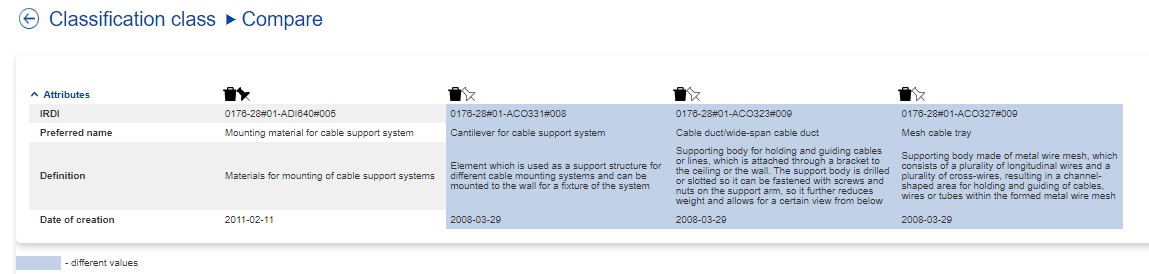
Two or more Structure Elements of the same type can be opened side by side in a compare view. The attributes (standard and extended) displayed in the Compare graphical user interface are configurable.
Different values of the attributes are highlighted by the system in blue color.
The compare view offers users two options:
-
Equal values: this options will include in the compare view also the attributes having equal value.
-
Empty values: this option will include in the compare view also the attributes having no value.
The Structure Element displayed on the first position in the compare view may be changed by using the pin-button on the header of the column. Structure Elements may be removed from the compare view by using the trash-bin button.
The compared Structure Elements can be exported in Excel format.