Overview
eptos Quantities and Units of Measure Manager offers users a harmonized graphical user interface for the management of Units, Quantities and Aspects of Conversion.
When opening the manager, the users sees the menu (representing workspace areas for the managed structure elements) on the left side. The visibility of the menus is controlled by user rights.
Workspace areas can be accessed by clicking on a specific menu. The workspace area is displayed on the right side of the screen and starts with a tabular view of the business objects managed in respective workspace.
eptos differentiates throughout all managers between a graphical user interface language and a content language. The language of the graphical user interface and of the maintained content can be set individually. Users can therefore work with graphical user interface language set in English / German and content language set to another language (e.g. French).
For business objects without translation in a selected content language, the system uses the default system language as fallback and signals the missing translation with an exclamation mark inside a yellow triangle in front of the text.
The following business objects are managed in Quantities and Units of Measure Manager:
-
Units
-
Quantities
-
Aspects of Conversion
The graphical user interface of the eptos Quantities and Units of Measure Manager consists of the following main areas:
-
Tabular view: available for all Quantities and Units of Measure Manager business objects
-
Detail view: available for all Quantities and Units of Measure Manager business objects
-
Perspective view: available for Units
-
Create view: available for all Quantities and Units of Measure Manager business objects
-
Edit view: available for all Units of Measure Manager business objects
All Quantities and Units of Measure Manager business objects share a set of basic functionalities. Specifics related to these basic functionalities in connection with the different Structure Elements are described in the specific chapters of respective business object.
Basic functionalities are:
-
Search: allows users to search for specific business objects
-
Create: allows creation of new business objects
-
Change Text: allows editing of existing business objects
-
Delete: allows deletion (deprecation) of existing business objects
-
Reactivate: allows reactivation of deprecated business objects
-
Assign: allows connection to Structure Elements
-
Export: allows the export of business objects
-
Import: allows the import of business objects
The following section describes the main areas of the graphical user interface and some basic functionalities. Further information on basic and specific functionalities are described in the specific chapters of respective business objects.
/*<![CDATA[*/ div.rbtoc1770892089583 {padding: 0px;} div.rbtoc1770892089583 ul {list-style: disc;margin-left: 0px;} div.rbtoc1770892089583 li {margin-left: 0px;padding-left: 0px;} /*]]>*/ Overview Tabular View Search Sorting Filter Detail view Perspective view Create view Edit view
Tabular View
All Quantities and Units of Measure Manager business objects are organized in a tabular view. This is the default view when the user enters the workspace area of a specific business object.
Units Tabular view displays the containing business objects structured in tabs:
-
Units
-
Unit relevant Change Requests (e.g. New unit)
Quantities tabular view displays under the Quantities table, a table with the Quantities relevant Change Requests (e.g. New quantity).
The tabular view offers users the possibility to browse and search the available business objects and Change Requests.
Moving from one page to the next page and back is possible via the Next/Previous buttons available in the left top of the table. In front of the Next/Previous buttons, the system displays the number of results found for a specific query.
The tabular view is configurable according to users' needs from the configuration panel located in each tabular view above the list, on the far right hand side (gear wheal symbol). From this column management dialog columns can be set as hidden / visible, the order of columns can be changed and user can add / remove link to the data displayed in relevant column.
System allows user to search for columns in the dialog list so that these actions of column management can be performed quicker, since user can search for and find the needed column via a search function instead of manual scrolling.
User can also configure the number of results displayed per page (available option 15, 25, 50, 100 results per page in the right top of the table). The selected configuration applies for business objects as well as for Change Requests.
In these tabular view columns the business objects or the Change Requests standard and extended attributes are represented. The columns have sorting option and their width can be adjusted as needed.
Moreover, system offers user the harmonized search feature.
In the Tabular view user has also has an export to excel function guarded by specific user rights for exporting all visible columns.
The tabular view offers users the following options:
.png?cb=2449f42ccc40a645f17f638ab7171286)
|
No. |
Name |
Description |
|---|---|---|
|
1 |
Content language selector |
Allows users to switch between available content languages. Note: the graphical user interface language is changeable independent of the content language. |
|
2 |
Selection box |
Allows users to select the business object which will be worked on. |
|
3 |
Search field |
Allows users to enter their search string in order to easily retrieve needed data. |
|
4 |
Advanced search |
Allows users to define in which attributes and with which options the search will be performed. |
|
5 |
Navigation buttons |
Allows users to navigate to next pages or back to previous pages. |
|
6 |
Column headers |
Allows uses to sort the content of columns respectively to filter the content for a better retrieval of results. |
|
7 |
Toolbar |
Allows users to work on the data displayed in the tabular view. |
|
8 |
Configurable table view |
Allows user to view available content in an organized way, which may be configured to their own needs. |
Search
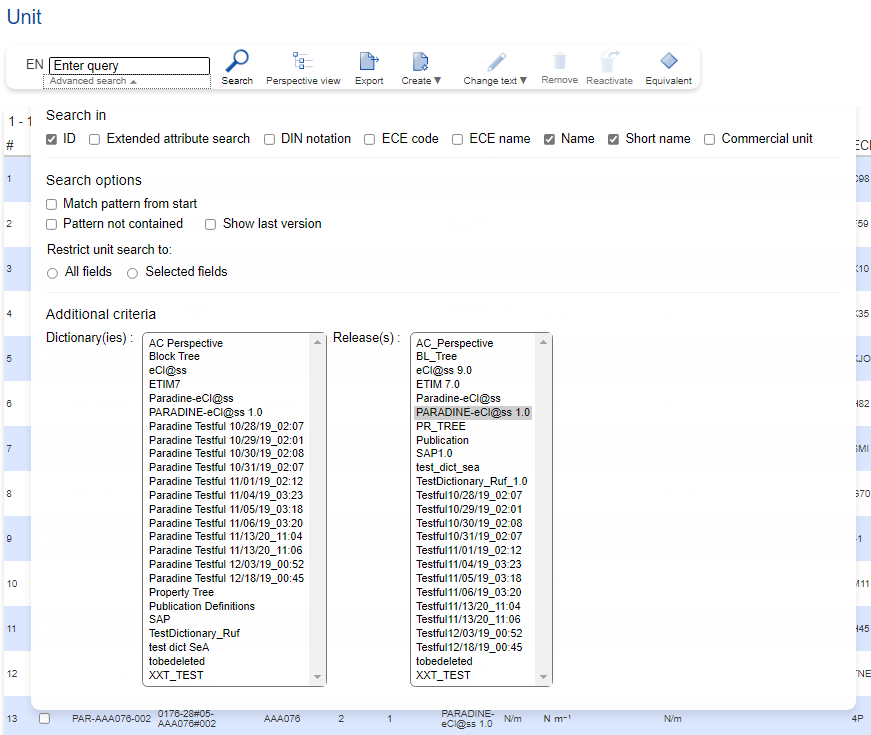
All tabular views of Quantities and Units of Measure Manager business objects offer a "Search" functionality with specific search criteria and options. The search can be triggered by selecting Search option and returns results for both lists: relevant business object on top and relevant Change Request below.
For more information regarding search function and options please see chapter "Search" on page Unit.
Sorting
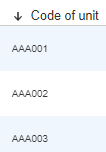
The tabular view offers sorting possibility for almost all columns. Sorting the results in ascending/descending order is possible by clicking on the column header. An arrow situated in front of the header, pointing upwards or downwards indicates that respective column is already ascendingly or descendingly sorted.
Filter
The tabular view offers filtering possibility for some of the columns. Filtering the results is possible via the filters placed in the left side of the column header:
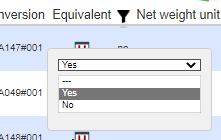
Above filter is an example of a predefined list of values.
That means that the columns representing attributes with predefined list of possible values allow users to further refine the search results by selecting one or more of the predefined values for respective attribute.
Detail view
In order to view more details related to a business object, users may open it in view mode by clicking on the ID or IRDI link from the Tabular view.
Within Details view the respective business object's attributes are grouped in different tabs. Tab configuration can be managed by an administrator: tab visibility, field visibility, tab display order, tab selected by default upon opening details view.
An option bar containing Favorites option which allows user to set respective business object as favorite is displayed above the details view.
The following table gives an overview of the tabs available for an Unit and of the attributes that are Unit specific.
Tabs where no information is available are not active and are displayed grayed-out.
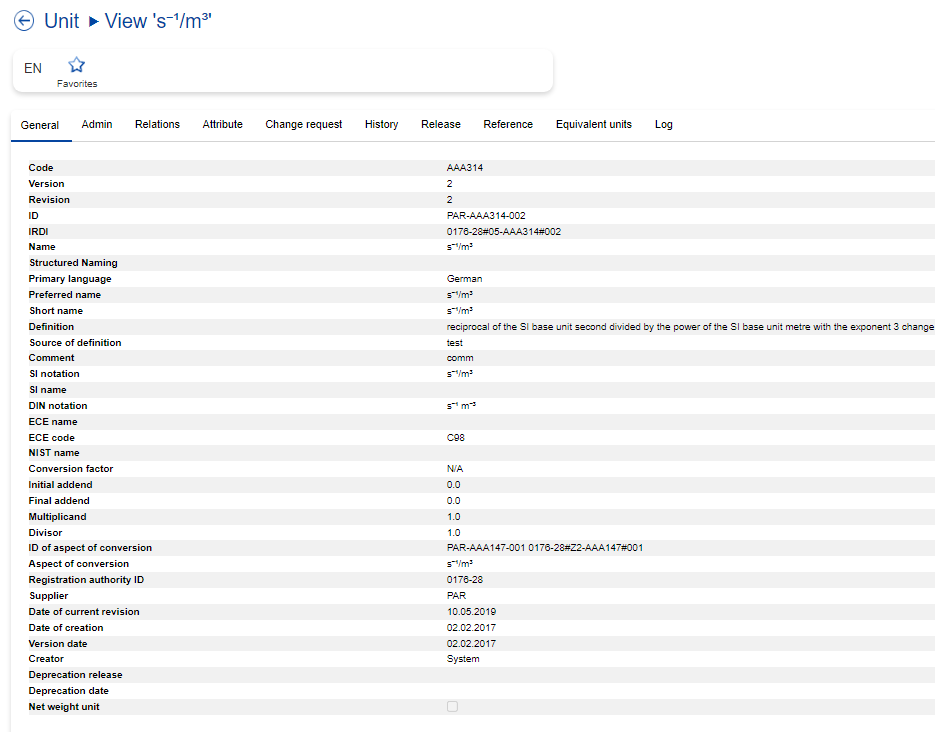
For more information regarding view page and table with available tabs containing attributes with brief description, please see chapter "View", page Unit.
Perspective view
System allows to display Structure Elements in a Perspective view which can be accessed via Perspective view specific icon.
Perspectives are hierarchies of classification classes (from a separate “organization objects” dictionary) to which the maintained business objects from the dictionary get related.
Users with Unit Manager Editor rights can use the Perspective view to organize Units into libraries by assigning them to Classification Classes.
The result is that users can quickly find business objects in the categories where they would expect them (e.g. all Units related to outputs in an organizing category Output).
The perspective view shows on the left-hand side the tree view of categories (Classification Classes) and on the right-hand side the (paginated, sortable) list view of the managed object (Unit).
The lists of objects to be organized is paginated and offers search, sorting and filter possibilities.
Perspectives allow assignments marking one to many objects in the list and dragging them into the tree. Alternatively assignments and unassignments may be organized via the "Assign unit" / "Unassign unit" toolbar options from the left hand side of the screen. After user selects the target node in the tree and selects one or several Units in the list, they will be assigned by pressing the Assign unit option. In order to unassign them, user needs to select the needed Units in the tree and select the Unassign unit option.
Unassignments from the Classification Classes is executed by dragging the object from the tree to the garbage bin.
Assignments or unassignments can be saved by selecting Save option.
If needed Classification Classes are not available in the classification structure used for organization of the objects in the library, new classes can be created by selecting a parent node (folder or Classification Class) and pressing create node (which enters the eptos “create Classification Class” dialog).
Multiple categorization trees for the same type of business object are possible.
Change Requests in perspective view are displayed in a separate tab "Changes".
.png?cb=08b78ce4763dcfef0ddd4b0ea15ae431)
|
No. |
Name |
Description |
|---|---|---|
|
1 |
Save |
Allows user to save changes performed in perspective view |
|
2 |
Create Class |
Allows creation of new Classification Classes if needed |
|
3 |
Unassign |
Allows unassigning Units in Perspective view |
|
4 |
Assign |
Allows assigning Units in Perspective view |
|
5 |
Hierarchy |
Displays Classification Classes in hierarchical tree |
|
6 |
Units |
Displays all Unit Structure Elements in list |
|
7 |
Changes |
Displays Unit Change Requests in Perspective view |
List toolbar
|
Option Icon |
Option Name |
Description |
|---|---|---|
|
|
Assign unit |
Allows user to assign Unit to Class in tree |
|
|
Unassign unit |
Allows user to unassign assigned Unit to Class in tree |
|
|
Search |
Triggers a search in the available content, considering the search options set in the advanced search. |


Create view
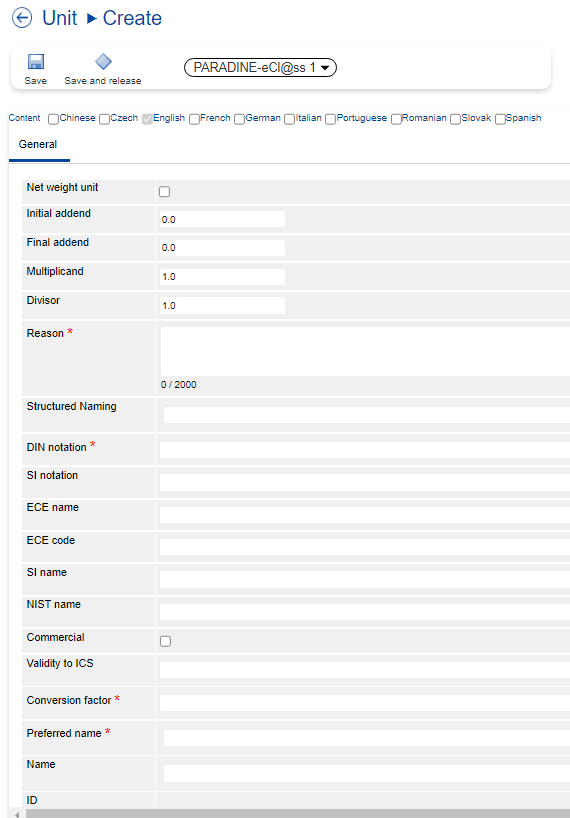
The workspace area for a business object Creation can be accessed via toolbar option Create in the needed business object menu entry.
For a complete description of all functions, please see chapters "Create" for relevant business objects (Unit, Quantity or Aspect of Conversion).
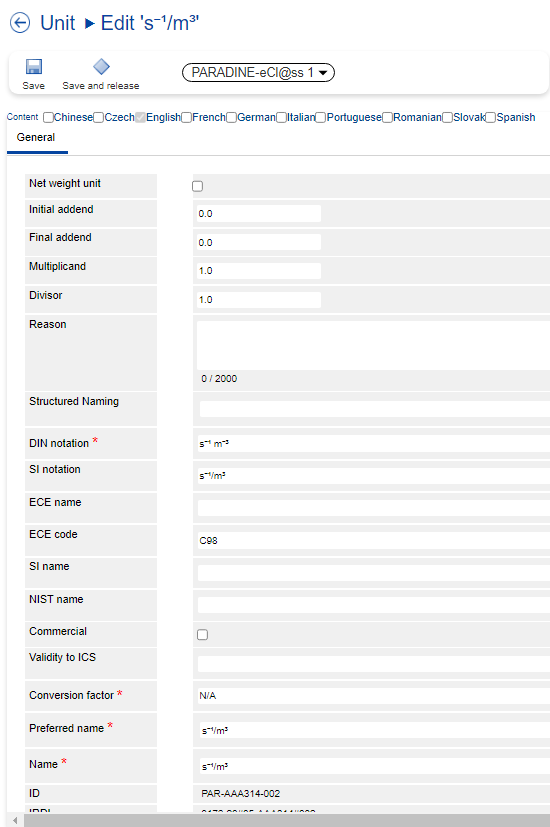
Edit view
User may access the workspace area for editing needed business object via toolbar option Change text from needed business object menu entry.
Here user may change all editable attributes belonging to selected business object.
For a complete description of all editing functions, please see chapters "Edit" for relevant business objects (Unit, Quantity or Aspect of Conversion).