Overview
This chapter describes the complex process of sending a full Dictionary, or just elements of a Dictionary (delta), to target system SAP.
All other chapters complete the information in current chapter and put it in perspective.
Send Full Dictionary to SAP
System offers the possibility to send a complete Dictionary with all included data to the SAP target system.
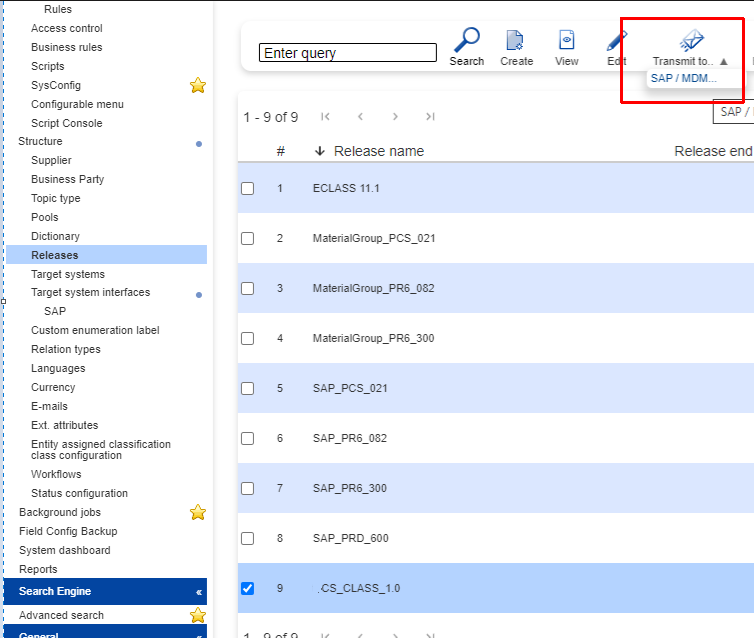
By means of this process the entirety of a Dictionary can be sent to SAP. The Dictionary needs to be marked as PFC enabled in Dictionary Create / Edit mode in Advanced tab.
Below screenshot illustrates the starting of send Dictionary to SAP process. Process is organized under Base Module / Structure / Releases by selecting desired Release and selecting Transmit to … SAP / MDM toolbar option:
Send Delta Dictionary to SAP
System offers also the possibility to send only a part of a Dictionary to the SAP target system. This is the delta option of sending a Dictionary to SAP.
By means of this process one or multiple Business Objects can be sent to SAP. This process may be organized for any Business Objects in a Dictionary.
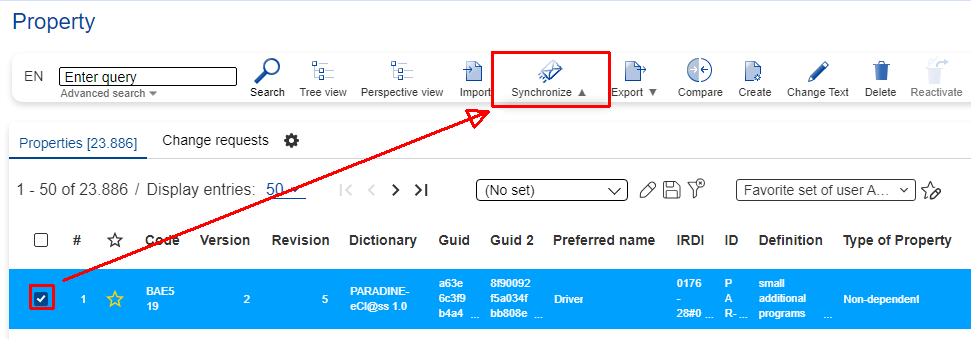
Deciding which objects will be sent to SAP is performed in the tabular view of relevant object by selecting one or more elements in the list and selecting Synchronize … SAP / MDM toolbar option.
Below screenshot illustrates an example of starting the send Delta Dictionary to SAP process from the Properties tabular view:
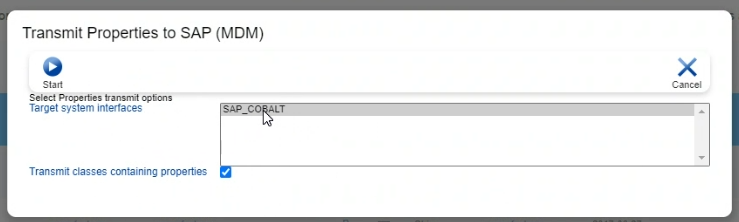
System offers also the possibility to send all Classes containing selected Property(ies) by means of ticking option Transmit classes containing properties.
Checking Dictionary Send Process
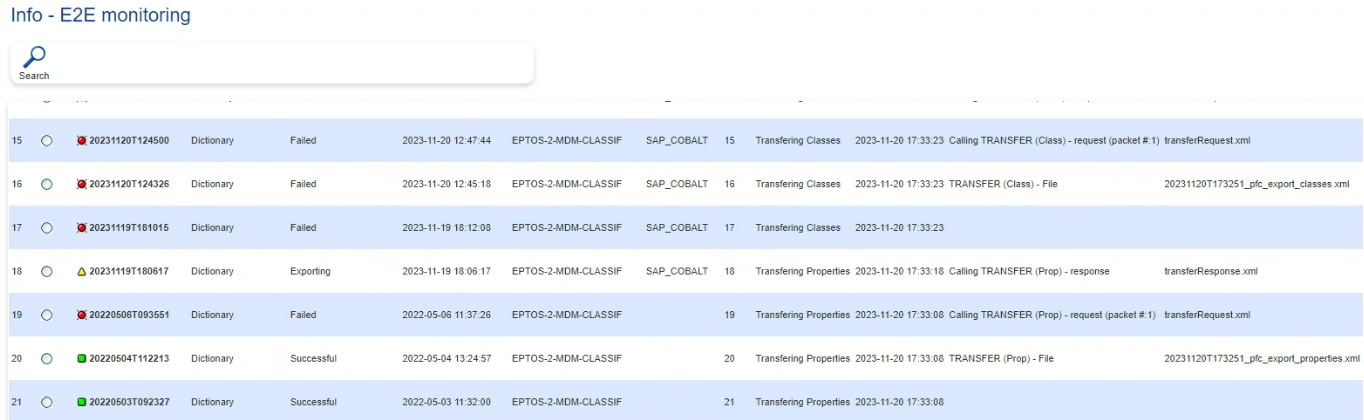
After any one of the above described processes (full Dictionary send to SAP or delta Dictionary send to SAP) was started, it may be checked under Base Module / Info / E2E monitoring by selecting workflow EPTOS-2-MDM-CLASSIF and selecting Search option.
System offers several search criteria that allow user to refine the search results such as: Entry name, Status, Date from, Date to, but user can also organize search by selecting needed workflow and E2E entry type Any.
After search results are returned, each entry displays different attributes such as E2E entry type, timestamp, interface, current status which is following the traffic light metaphor where green means success, yellow - running and red - failed.
Each workflow displays for each business object 4 entries. Below example is for Properties:
-
Transferring Properties → process started
-
Transferring Properties + TRANSFER (Prop) - File → file containing Properties was prepared for sending to SAP. Entry contains the Properties PFC export .XML file
-
Transferring Properties + Calling TRANSFER (Prop) request → file containing Properties was sent to SAP. Entry also contains the transfer request .XML file by which eptos sent the changes to SAP
-
Transferring Properties + Calling TRANSFER (Prop) response → SAP sends the response to the received request. Entry also contains the transfer response .XML file by which SAP informs eptos of the changes made in SAP
Each result contains a payload in form of a .XML file that cam be downloaded. Here user finds all the needed details of the send Dictionary operation which are needed in case of failure as well as in case of success.